Network
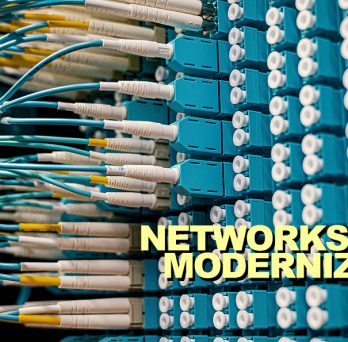
The data network is made up of many layers, all of which play important roles in delivering robust collaboration and communication services to stakeholders. Each year our community increasingly relies on the data network as demonstrated by a 37% increase in active wired connections over three years and a 25% increase in wireless devices over three years.
Deferred and deficient network maintenance puts UIC at significant risk of a major outage or significant security incident. In 2019, such an incident left Amherst College without a functioning network for five days. Such an outage at UIC would damage our reputation and have an incalculable cost to every aspect of the institution. The risk of outdated network infrastructure includes security risks, endangering our students’ privacy and safety of our research data, as well as compliance with regulatory requirements and audit findings.
Quote Heading link
The data network supports all aspects of the University and is increasingly relied upon each year.
Network Goals Heading link
Expand Wi-Fi connectivity
Each year our community increasingly relies on the wireless network. From the classrooms to student housing to campus visitors, the UIC Wi-Fi is relied upon by students, faculty, and staff.
Eliminating outdated phone systems and telecom technologies that are obsolete.
Benefits
- Fast and reliable campus network
- Increased network security and compliance with regulatory requirements
- Ability to meet research and teaching network demands
Risks
- Major network outage or significant security incident
- Student privacy and safety of research data
- Limited or unstable access to Wi-Fi
Network News & Updates Heading link